A function of your portal, in full
Always know where you stand with your master.
When your portal sends files to a master, Your account keeps the money between you in view: your balance, the statement line by line, the top-ups you made and what the master has switched on for you. A dealer stops keeping the account in a chat thread, and a job is no longer held on a Friday for want of credit nobody saw running out.
A dealer portal is a tuning business of its own, with its own customers, its own prices and its own name on every screen, that sends the files it cannot or does not tune to a master. Between the two there is an account. The master charges for each file it delivers, the dealer pays, and at any moment one side holds something or owes something. Your account is that account, seen from the dealer's chair.
It is one row in the menu with three pages behind it. The account page shows where you stand: the balance, how you pay, the statement, and the features your master opened to you. The Credits tab is the top-up page: choose how much, choose how to pay, and the credits land on your balance when the payment is confirmed. The Activations tab is the master's shop for tool activations, with your trade price beside the retail one. A third tab, My tools, holds the register of your tools.
Nothing on these pages is typed in by you as a figure. The balance, the statement, the prices and the answers to an order are the master's own, read from the master's side and shown on yours. That is the point: both of you look at the same line, so a question about money takes one message, not a week.
The pages are on any portal that works as a dealer under a master, whatever its package. A portal that works alone, or only as a master, has no account of this kind and no such row in its menu.
A shop's day without it
A dealer who buys files from a master keeps the account in their head, in a chat thread or in a spreadsheet. The master sends a total at the end of the month, the dealer tries to remember which cars those were, and one job is argued over for a week. A bank transfer goes on Thursday evening, the master's bookkeeper looks on Monday, and meanwhile a customer's car is on the ramp and the file that should have been back in twenty minutes sits held. For a tool activation the dealer photographs a serial, asks for a price on a chat and waits two days for something the customer expected that afternoon.
A top-up, from a low balance to a job on its way.
What happens between the moment the balance reads low and the moment a held file moves again, by card and by bank transfer.
- The balance says soThe balance card reads top up required or no credits left, with about how many files it still pays for; the top-up page reads healthy, low or depleted against what a file costs you.
- You choose how muchOne of your master's credit packs, a quick amount, or a figure of your own. The gauge shows the balance you will have after, and later how many weeks it would last at your usual pace.
- You choose how to payCard, Pay Monthly for dealers in the UK, or Offline for money that already moved. Which ways the page shows is your master's choice.
- By card: confirmed as you come backThe secure checkout takes the payment and the credits are on your balance when you return. Your card details never touch the portal.
- By transfer: awaiting masterYou declare the transfer with a reference and a note. It shows as awaiting master until the master confirms it by hand.
- The held job goesA job that was held for credit goes on its way by itself, and the top-up is in Your history with its invoice, for anyone who manages the shop.
Just paid and not on the page yet? The portal keeps the master's figures for a few minutes between reads; press Refresh.
The same account, from the master's chair.
This is the statement a master keeps for a dealer: the balance and the files it still buys, any period, every movement with its job. Your statement is read from the master's side, so both of you look at the same line; on yours, each charge carries your own request number, the car and the services ordered.
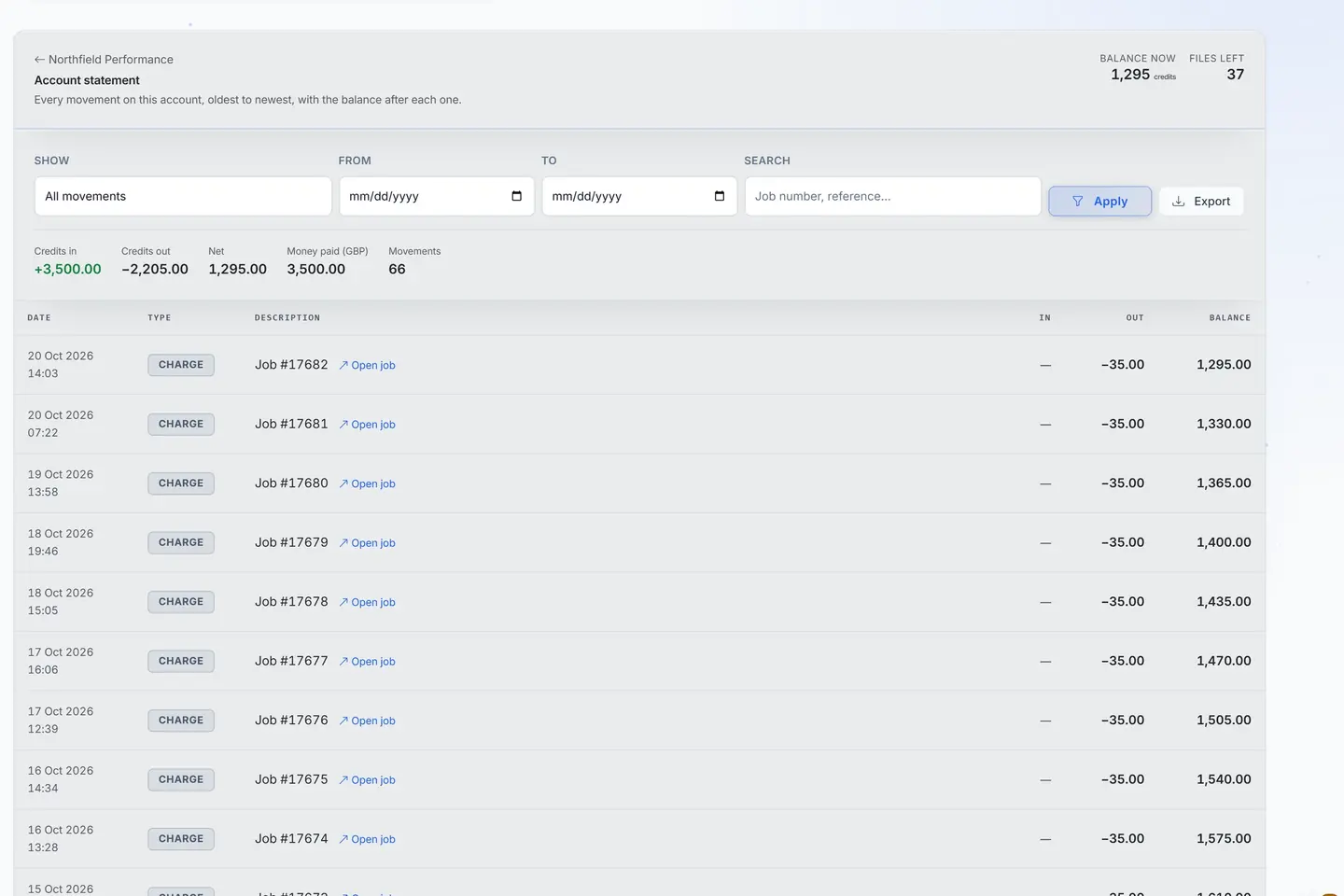
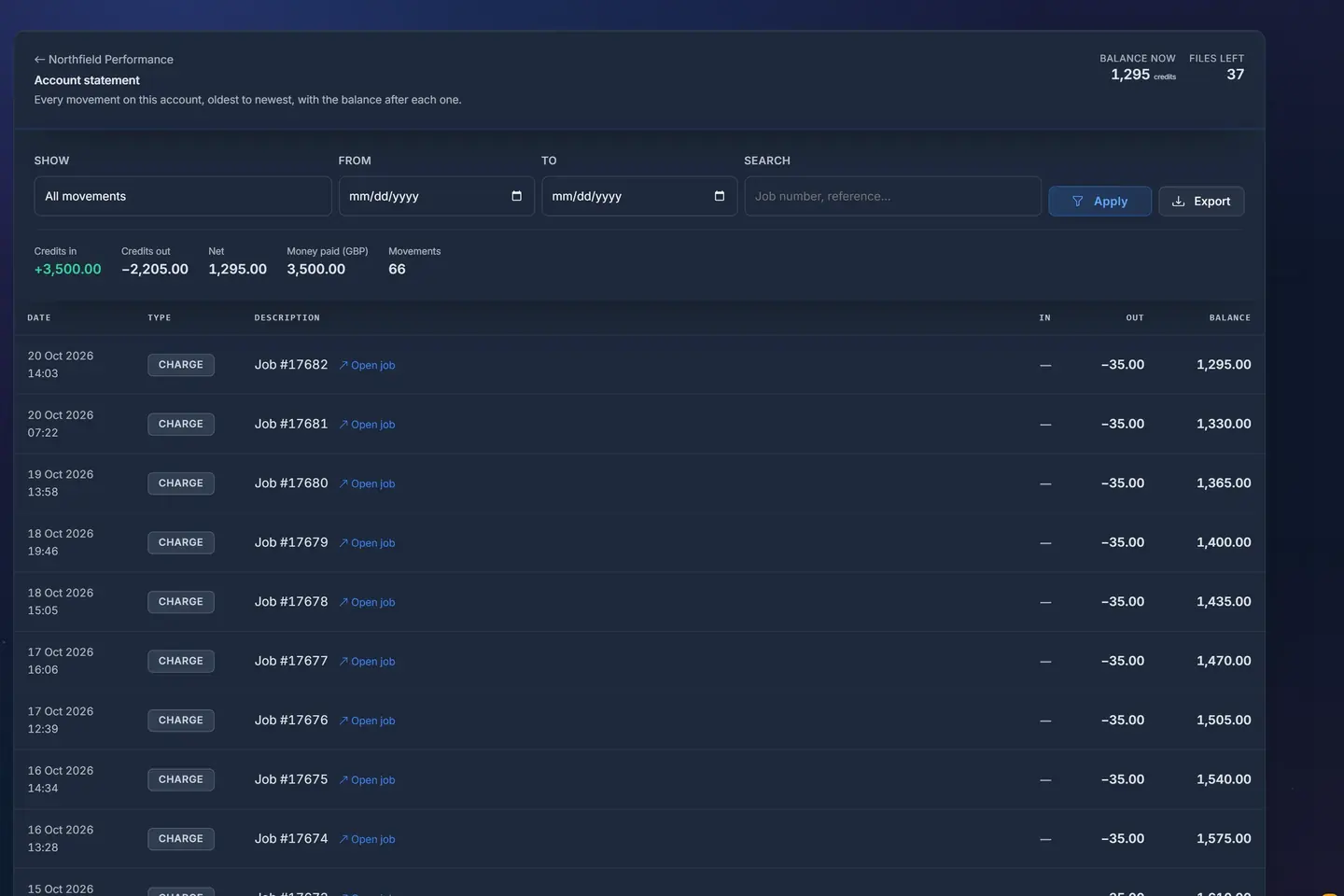
- 1Balance and files leftWhat a dealer has on account and how many files that still buys.
- 2Any period, exportedPick the dates, search a job, export the statement.
- 3Every movement, with its jobEach charge and top-up with the job it belongs to and the balance after it.
A sample shop; your portal carries your name.
An activation for a customer's tool, the same afternoon.
When your master sells tool activations, the Activations tab replaces the photographed serial and the two days on a chat.
- Type the serialFrom the label on the back of the tool or from its own software; spaces and dashes do not matter. A found tool shows its model, the customer it is for and what is already on it.
- Pick what to addOne card per product the master sells to you, with your price and the retail price when it is higher. A renewal is marked as one.
- Read what you are buyingThe product, the model, the serial, the customer and your price, in one box with the button that pays. Pressing it twice sends one order.
- The master answersOrdered, with a reference, or refused in the master's own sentence. What you ordered is charged to this account.
What you find on it
Your account
Open Your account in the menu. The page says where your portal stands with its master and lists every movement behind that figure. The portal keeps the master's figures for a few minutes between reads; press Refresh when you have just paid and the payment is not on the page yet. If the pairing is not finished, or the master's portal cannot be reached, the page says so and shows no figures until it can read them again. Owners and the staff who manage operations open it; tuners do not.
- Your balance
- What you hold with the master, or owe, and about how many files it pays for at your price. The label changes with your situation: your credits, credits left with master, settled with master, top up required, or no credits left. Beside it is how you pay: a flat price per request, a price per modification, a price per credit, the master's price list, or settled separately outside the portal. If the master gave you a credit line, the page says how much you may owe before files stop.
- The figures beside it
- The name your master knows your portal by, files sent, files delivered, and what you have spent over the life of the account. The name is useful to quote when you write to the master.
- Add credits
- One press to the top-up page, with the ways to pay your master opened to you.
- Activations for your tools
- Shown when your master sells tool activations. Each of your registered tools, with what is already on it and what can be ordered or renewed for it at your price. Anything ordered is charged to this account.
- What your master switched on
- The features your portal may use, as the master set them: tuning your own files, uploading tuned files, the editors, dyno sheets, the file library, the Vehicle Hub, the workshop diary and more. A portal that only forwards work reads a single line saying so. A feature the master did not open has no door on your portal.
- Your statement
- Every job billed, every top-up, every refund and every correction, newest first, each with the balance it left behind. A charge does not come as a code you have to look up: the portal swaps the master's reference for your own request number, the car and the services ordered. A correction carries the words the master wrote. Times are shown in your portal's time zone, not the master's.
The Activations tab: your master's shop
Open Your account, then the Activations tab. A master who sells activations for tuning tools can open a shop to each dealer, and this is that shop on the dealer's side, drawn from the master's price list. You type the serial of the tool, pick what to add and pay from your own portal; the charge goes to your account with the master. Until the master opens a shop, the page says so and shows nothing to buy. Tuners cannot open the page.
- Who you are to your master
- Your tier and four figures the master keeps about you: your annual target with the quarter's progress beneath it, what you spent this year and whether you are on pace, how many activations are live on your tools, and whether a dealer discount applies. Every figure arrives from the master, in the currency it was quoted in.
- Activate a tool
- The serial box, with help on where to find the number: on the label on the back of the tool, or in the tool's own software. Spaces and dashes do not matter. A found tool shows its model, the customer it is for and what is already on it. A serial no tool of yours carries says so and offers Add a tool, which opens My tools.
- Available activations
- One card per product the master sells to you: the name, your price, and the retail price when it is higher. With a tool found, the cards show what that tool can take, and a renewal is marked as one.
- You are buying
- The box that appears when a product is chosen for a found tool: the product, the model, the serial, the customer, your price with the retail price beside it, and the button that pays. Pressing it twice sends one order.
- The master's answer
- Ordered, with a reference, or refused, in the master's own sentence: a tool that is not yours, a price that changed since you looked. When the master cannot be reached, the page says that what you see may be a few minutes old and that nothing was ordered.
The Credits tab: top up
Open Your account, then the Credits tab, or press Add credits on the account page. Every file a master delivers is paid for from the dealer's balance, and this page fills it: take an amount, take a payment, add the credits, and keep a record the whole business can find later. Which ways to pay it shows, and which packs and quick amounts, are the master's choices. A job that is short of credit also offers a payment from its own page.
- The state at the top
- Healthy, low or depleted, measured against what a file costs you: healthy when the balance covers a few files, low when it covers less, depleted when you owe.
- How much
- When your master put you on a price list, the page opens with their credit packs: your tier, and each pack with its credits, its price and the price per credit. Otherwise, or when you want a figure of your own, the open amount box takes any amount between the least and the most the page accepts.
- Quick amounts
- Buttons that fill the amount in one press. The master can set which amounts they are.
- Wallet after top-up
- A gauge with the balance you will have after this top-up and whether it reads healthy, low or depleted. After the first weeks of activity it adds an estimate of how many weeks that balance would last at your usual pace.
- How to pay
- Card sends you to the secure checkout and credits the balance when you come back; your card details never touch the portal. Pay Monthly spreads the cost over interest-free instalments through a regulated finance partner, for dealers in the UK, with a decision in a day or two. Offline is for money that already moved, such as a bank transfer or cash: you declare it with a reference and a note, and the master confirms it by hand.
- Your history
- Every top-up the shop has made, newest first, by anyone who manages it: the date, the amount with the credits it bought, who paid and how, its status, and the invoice to download when there is one. The record belongs to the shop, not to the person, so a colleague finds the receipt when the owner is away.
How it works
- Your master adds your portal as a dealer and sets how you pay: per request, per modification, per credit, from their price list, or settled outside the portal. Your account appears in your menu.
- Open Your account and read the balance card: what you hold or owe, about how many files that covers, and any limit on what you may owe. A line in red says a top-up is required before more files go.
- When the balance is lower than the week ahead needs, press Add credits. Pick a pack or type an amount, watch the gauge, and choose how to pay.
- A card payment is confirmed the moment you come back from checkout. A job that was held for credit goes on its way by itself. A declared transfer shows as awaiting master until the master confirms it.
- Send your jobs as usual. Each one the master bills appears on the statement under your own request number, with the car, the services and the balance left behind.
- When a line looks wrong, quote it to the master. A correction made on the master's side shows on your statement as an adjustment, with their words, on the next read.
- For a tool activation, open the Activations tab, type the serial, pick the product and press Pay. The master answers on the same page, and an accepted order is charged to your account.
Who it is for
- The ownerThe owner of a dealer portal buys the files from the master, so the account is theirs to watch. They read it before a busy week and after every payment, and top up by card when speed matters.
- Your teamStaff who manage operations check a line, press Add credits when the owner is away, and find the receipt for any top-up, whoever paid it.
- Your tunersA tuner does not open these pages; the portal answers that they are not available for that role. The tuner only notices that jobs sent to the master are not held.
- Your dealersA dealer sees its whole trade with the master in one place: what each job cost, what is left, what its tools can take and at what price, and how far it is from the target the two agreed.
- A masterThe master never opens these pages, but every figure on them is the master's: what it bills, what it confirms as paid, the packs and prices it set, and the features it switched on.
How shops use it
The Friday afternoon top-up
A one-person dealer with a car on the ramp
The job he just sent to the master is held: the balance ran out with the morning's files. The job's own page offers a payment, and he pays by card from the phone in his pocket. He is sent to the secure checkout and back, the page says the credits were added, and the held job goes on by itself. The top-up is in Your history, where the bookkeeper will find it.
A held job released in the time a card payment takes, without ringing anyone.
Reconciling on Monday morning
A two-person shop that sends most of its files to a master
Every Monday the owner opens Your account and reads last week's statement against the cars she remembers. Each line names her own request number, the car and the services, so nothing has to be looked up. One line shows a service she did not order. She quotes the request number to the master, and by the afternoon an adjustment sits on the statement with the master's note.
No end-of-month argument, and a query that takes one message because both sides read the same line.
The customer waiting in reception
A dealer who sells tools and activations to local garages
A garage owner walks in wanting a protocol opened on his tool. The dealer opens the Activations tab and types the serial from the label on the back. The page names the tool and what is already on it, and the cards show the dealer's price beside the retail one. He presses Pay, the master answers with a reference, and the charge is on the dealer's account.
A sale made in one visit, at a margin the dealer could read on the screen, with a reference on both sides.
The shop that pays by transfer
A dealer whose accountant insists on bank transfers
The owner makes the transfer at the bank, then opens the Credits tab, chooses Offline, and declares it with the amount, the bank reference and a short note. The row shows as awaiting master. The master sees the declaration beside the money in its bank, confirms it, and the credits are on the dealer's balance on the next read.
A transfer counted the day the master sees it, with a reference on both sides in place of a screenshot in a chat.
Where it helps, and its limits
Where it helps most
- A workshop that buys its files from a master and wants to know, before a busy week, how many cars its balance covers.
- A dealer that pays up front and cannot afford a job held on a Friday afternoon.
- A shop where two people pay and one bookkeeper needs every receipt.
- A dealer on a discount tied to an annual target, who wants to see the target and the pace without asking.
- A dealer that sells tool activations to local garages and wants a price and an answer while the customer waits.
What it does not do
- Nothing is edited here. The figures are the master's; a correction is made on the master's side and appears on the next read.
- The pages show the master's figures a few minutes old between reads, and nothing at all while the master's portal cannot be reached.
- A declared offline payment adds nothing until the master confirms it, and Pay Monthly is not instant: it is for dealers in the UK and takes a day or two for a decision.
- The Activations tab orders and shows the master's answer. The key itself is issued and kept on the master's side, and the tab sells only what the master put on sale to you.
Which package
- Your account
- In every plan, Start included.
- The Activations tab: your master's shop
- In every plan, Start included.
- The Credits tab: top up
- In every plan, Start included.
Prices in euros, a month, before tax, billed on the 1st. Every price ›
Questions shops ask
- Is this page on every portal?
- Only on a portal that works as a dealer under a master, with any package. A portal that works alone, or only as a master, has no such row in its menu.
- When do the credits show up after a top-up?
- A card payment is finished the moment you come back from checkout, and the page says the credits were added. A declared transfer shows once the master confirms it, and Pay Monthly once the finance partner approves.
- Why does it say a top-up is required when I sent files yesterday?
- Because yesterday's files were billed and the balance went below zero, or reached zero on a master that holds files at zero. The balance card says which, and Add credits is the way out.
- What if the balance shows a figure I do not agree with?
- Every line names its job by your own request number, so the two of you compare line by line. A correction the master records shows here as an adjustment, with their words.
- What does settled separately mean beside how I pay?
- That the master bills you outside the portal, by invoice or by arrangement, and keeps no running balance here. The statement still lists the jobs; the money is agreed elsewhere.
- Why can I not see the card option?
- Because your master has not switched it on. The card on this page pays the master, not your own shop, so it is the master's settings that decide. Ask them.
- Can I pay for one job only?
- Yes. A job that needs more than the balance offers a payment from its own page, and the job shows the payment landing and the file going.
- Can my tuners see the account?
- No. It is the business account of the portal, so only the owner and the people who manage operations open it.
- Who sets the prices in the activations shop?
- The master. Every figure arrives from them; your portal adds nothing. What you charge your own customers for an activation is priced on your own portal, once you switch selling to them on.
- What is the name shown beside the figures?
- The name your master gave your portal on their side. It is how you appear on their dealer list and on their statements, so it is the one to quote when you write to them.
Every function of the portal, each on its own page. All functions
Name your portal. It is ready in under a minute.
Pro: today you pay this month in full, or only the days left if the 1st is less than 10 days away; then €60 on every 1st.
- Your name and logo
- Files from any tool
- Updates done for you
- Moving in free on paid plans
You can change your portal's address from your account at any time, or add another to the same portal, free. More are coming: tunerengine.co.uk, tunerengine.uk and tunerengine.info, then new short ones made for portals.