A function of your portal, in full
Every payment gets its invoice, with the right tax, without you.
When a customer pays on your portal, the portal writes the invoice: your company details, the next number in your series, and the tax worked out from the customer's country and yours. The customer finds it on their own My Invoices page as a PDF, so the shop writes no invoice by hand and answers no email asking for one.
An invoice is the one document every customer needs and no tuner wants to write. On the portal it is made by itself. The moment a payment for credits, or for an order in the activation shop, is confirmed, the portal takes the next number of your series, puts your company name, address and tax numbers on the document, works out the tax and makes the PDF. It is filed under the customer who paid, and they can download it whenever they need it.
Three places hold all of it. My Invoices is the customer's page: their own invoices, newest first, with the totals at the top. The Invoices section of Settings is where you decide what the document says and looks like: your address and contact lines, your bank details for customers who pay by transfer, the legal lines some countries ask for, the logo and colours, the number prefix and the wording of the line. The same section links the portal to Lexware or Holded, so each invoice also lands in your accounting software. The VAT and tax section decides what tax is charged and why.
Tax is the part shops fear, and it is mostly a matter of answering a few questions once. Are you registered for VAT, or a small business exempt from it? Do you sell to businesses in other EU countries, who account for the VAT themselves? What should happen when a customer has not said which country they are in? The portal applies the answers to every sale: the rate for the customer's country, no tax on an export, the reverse charge for an EU business with a VAT number, and a note on the invoice that says why a rate is zero. Shops in GST countries are covered by the same switch, with the Indian split by state.
None of this replaces your accountant. The portal prints what you give it and applies the rules you switch on; which rules apply to your business is a question for the person who signs your returns. What the portal takes away is the typing, the numbering and the chasing.
A shop's day without it
A customer writes in March asking for last year's invoices, for their accountant. Someone at the shop searches the mailbox, finds four of the six payments, writes two invoices by hand from the bank statement, numbers them after the fact and hopes the sequence still makes sense. A garage in another country asks why it was charged VAT when it gave its VAT number, and nobody remembers what was agreed. At the end of the quarter the same invoices are typed a second time into the accounting software. An afternoon is gone each time, and the next customer with the same question is a week away.
From a payment to an invoice in your name.
What the portal does between a customer paying and the PDF sitting on their My Invoices page, with nobody at the shop involved.
- The payment is confirmedA customer buys credits, or pays for an order in the activation shop. Nothing is written before the payment is confirmed.
- The tax is worked outFrom the customer's billing country and yours, by the rules you switched on in VAT and tax.
- The next number is takenYour prefix, the year and a running number for that year. A number already used is refused, so the series has no doubles.
- The document is madeYour company name, address and tax numbers, your logo and colours, your wording of the line, and the reason beside any zero rate.
- The customer has itOn My Invoices, first as Pending while the PDF is made, then as Paid with its download.
- Your books have itWith Lexware or Holded linked, the invoice is sent on, by hand from the list or by itself when you switch that on.
Which tax a sale carries, question by question.
With Charge VAT on, the portal puts the same questions to every sale and prints the answer on the invoice.
- Small business?With Small business, no VAT on, no sale is charged VAT, before any other rule is looked at, and every invoice prints the exemption note.
- Where is the customer?The rate is the one for the customer's billing country. With no country on file, your own country is used, or the fallback country you named.
- An export?A sale that counts as an export carries no tax, and the invoice says why the rate is zero.
- An EU business with a VAT number?With the reverse charge on, a business in another member state pays no VAT and the invoice carries its VAT number and the note. You can ask that only checked numbers count.
- On your own list?After the export and reverse charge rules, your list of tax-free countries: a customer from one of them is charged no tax, with a note that the country is exempt by your setting.
The portal applies the rules you switch on. Which rules apply to your business is a question for your accountant.
Where the customer meets the invoice.
The customer's credits page on a sample portal. The invoice of a purchase is shown beside the purchase here, and kept on My Invoices.
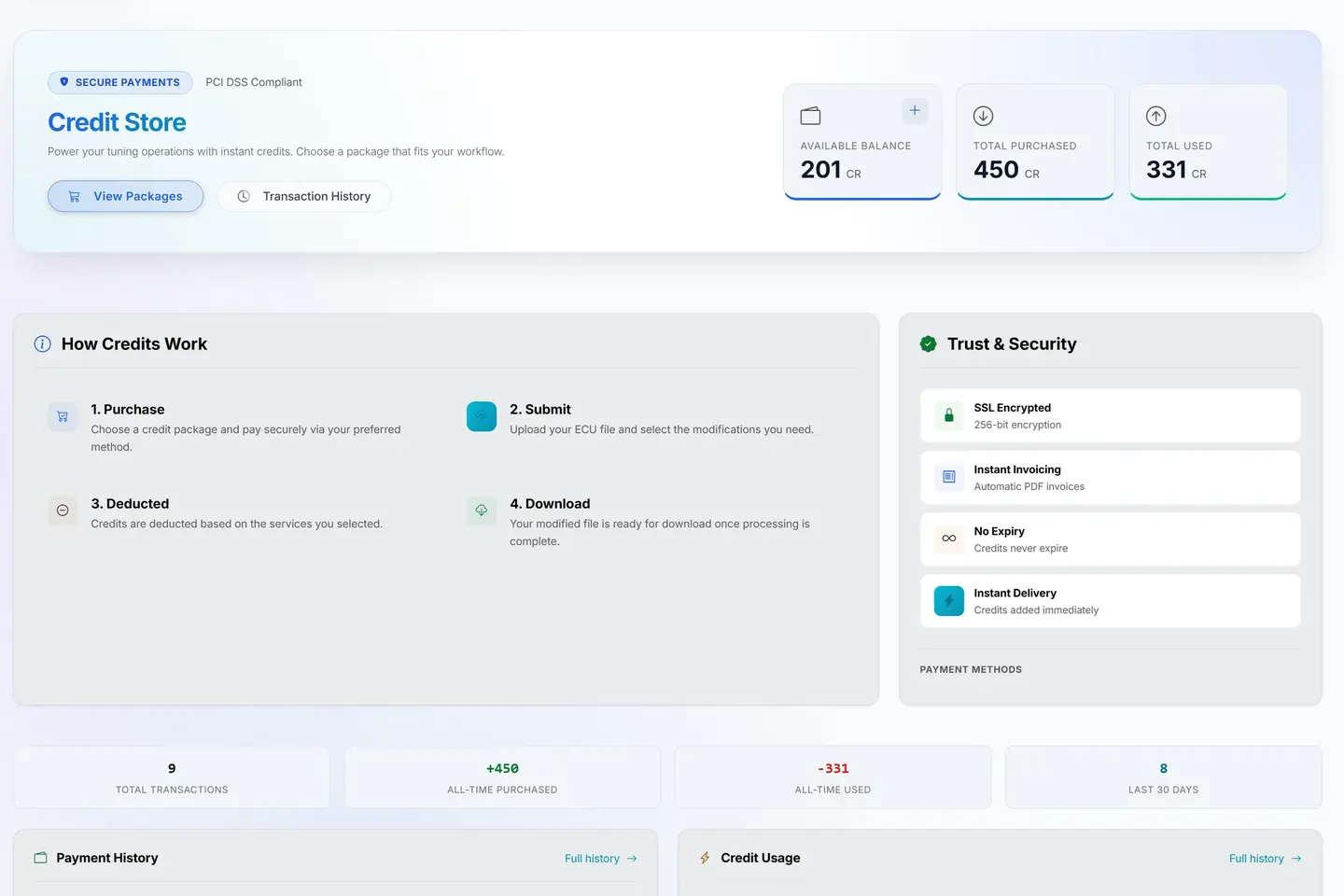
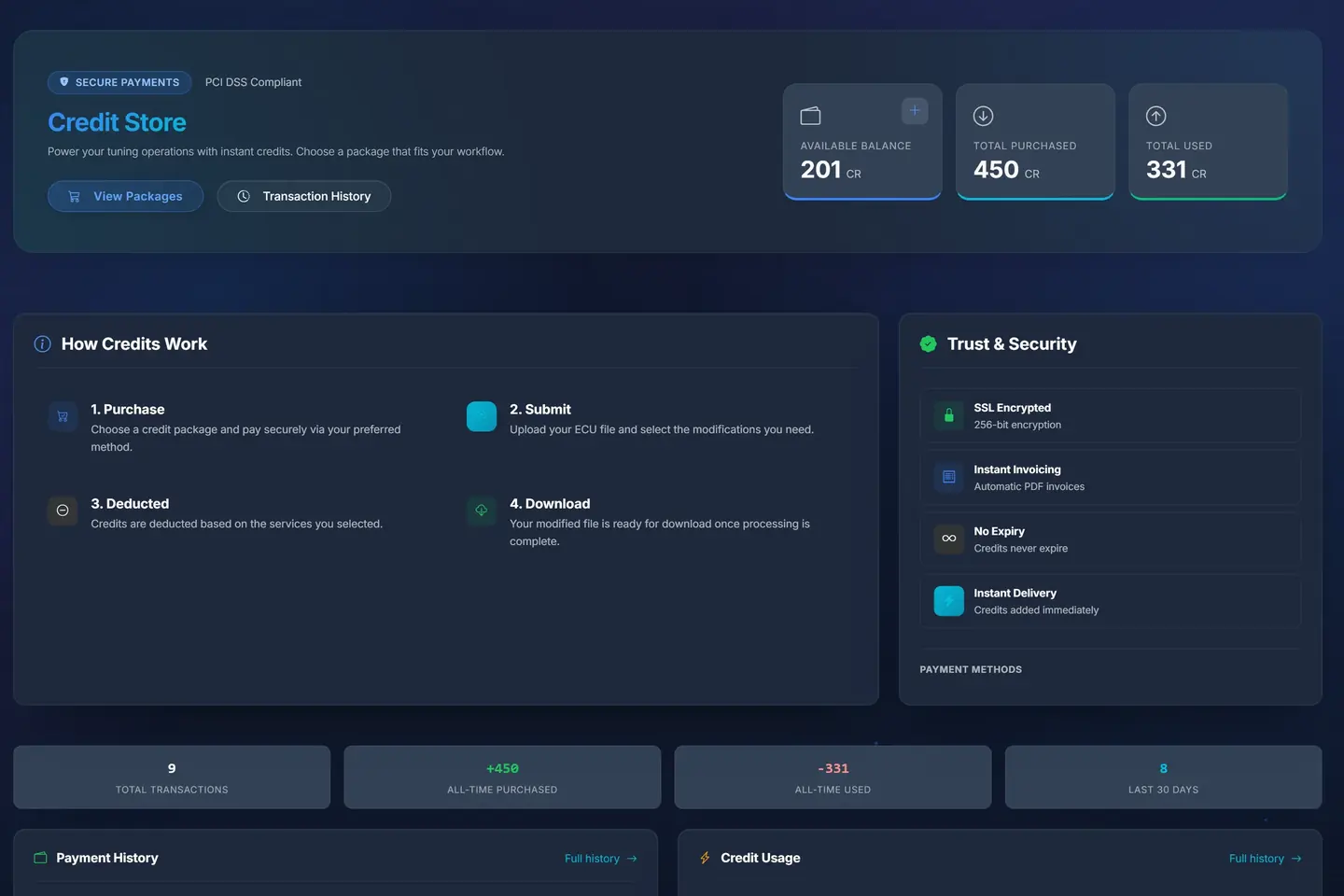
- 1Credits at a glanceWhat the customer has, has bought and has used, on their side of the portal.
- 2How credits workBuy a pack, send a file, the credits come off, download the tune.
- 3Invoiced at onceEvery top-up is invoiced in your name the moment it is paid.
A sample shop; your portal carries your name.
What you find on it
My Invoices: the customer's page
My Invoices is in every customer's menu from the first day, in every package. It shows the signed-in customer their own invoices and nobody else's: the totals at the top, then the list, each invoice a PDF to download. There is nothing to switch on. It lists and downloads; it does not send, so a customer who wants an invoice in their inbox downloads it and forwards it.
- At a glance
- Four cards: how many invoices there are, the total spent, how many invoices are still being made, and the date of the last one. The total spent counts money that actually left the customer, once. A tool activation paid with credits gets its own document recording what the credits bought, but that money was counted when the credits were bought, so it is not added again. A customer with nothing yet reads zeros, not an error.
- Download an invoice
- The list, newest first and twenty to a page. Each row has the invoice number, the date, the amount with tax included and the tax shown when there is any, the way it was paid and its status. Paid rows carry the PDF button. Pending means the payment is confirmed and the PDF is still being made in the background; the row is there so the customer knows it is coming, and the download appears when it is ready. On a phone each row is a card with its download underneath.
- Buy credits
- One button to Purchase Credits, at the top of the page and in the empty state. A customer who has bought nothing yet sees a page that explains itself: invoices appear here once they purchase credits. The invoice of a purchase joins the list when the payment is confirmed, and it is shown beside the purchase on the credits page too.
Invoices settings
Settings → Money → Invoices. The section decides whether the portal writes invoices at all, what each one says about your company, how it looks and how it is numbered. It also holds the two accounting links, Lexware for shops in Germany and Holded for shops in Spain, which come with Business and above, and the name of the person who sees notes about your portal's own account.
VAT and tax settings
Settings → Money → VAT and tax. The section holds your VAT and tax numbers and the switches that decide what tax a sale carries: whether VAT is charged, the small business exemption, the reverse charge for EU businesses, what happens when a customer has no country, your own list of tax-free countries, and the settings a shop under GST needs.
How it works
- Fill in the Invoices section once: your address, email and phone, your registration number, your bank details if customers pay by transfer, your logo and two colours. Choose the letters your invoice numbers start with before the first invoice is written.
- In VAT and tax, type your VAT number and answer the tax questions with your accountant: charge VAT or not, small business exemption or not, reverse charge for EU businesses or not.
- A customer buys credits, or pays for an order in the activation shop. When the payment is confirmed, the portal works out the tax from the customer's billing country and yours, takes the next number of the year in your series and writes the invoice.
- The invoice appears on the customer's My Invoices page, first as Pending while the PDF is made, then as Paid with its download. A zero rate carries its reason on the document: an export, a reverse charge, an exemption.
- If you have linked Lexware or Holded, the invoice is sent on: by hand from the invoice list, or by itself when you switch that on. The customer is matched there by email, or created from their details.
- At tax time the customer downloads their own set, and your books already hold the same invoices under the same numbers.
Who it is for
- The ownerSets the company details, the numbering, the look and the tax rules once, with the accountant beside them. After that every invoice is made without the owner.
- Your teamStop forwarding documents. The answer to "can you send me the invoice" is that it is on the customer's own page, and a money question is settled by reading the same list the customer sees.
- Your customersDownloads their own invoices whenever they need them, for an accountant or their own books, and sees what they have spent in total, without writing to the shop.
- Your dealersA garage that buys credits as a trade customer gets a proper invoice for each purchase, with the seller's company details and VAT number on it, and finds the year's set in one place at tax time.
Every setting, explained
Invoices settings
32 settingsSettings → Money → Invoices. The section decides whether the portal writes invoices at all, what each one says about your company, how it looks and how it is numbered. It also holds the two accounting links, Lexware for shops in Germany and Holded for shops in Spain, which come with Business and above, and the name of the person who sees notes about your portal's own account.
Make invoices automatically
Writes an invoice for every credit purchase and every activation shop order the moment the payment is confirmed, whichever way the customer paid, and files it under their My Invoices. Off, no invoice is written and the payment confirmation does not promise one. Invoices written before you switched it off stay where they are.
Billing contact
Your portal has its own account with TunerEngine: the package, the add-ons, the balance. Notes about it are shown inside the portal to one person only, and this names that person. Only an administrator or the portal owner can be named; anyone else is ignored. It has nothing to do with your customers' invoices.
Invoice main colour
The colour of the header band and the headings on the invoice. It changes the invoice only; the portal's own colours are set under your brand.
Invoice second colour
The colour of the accents on the invoice, beside the main colour. Like the main colour, it is used on the invoice only.
Website on invoices
Your own website, printed under the company name in the header of every invoice. It is also one of the facts the Telegram assistant gives a customer who asks about your business. It does not change any link on the portal.
Address on invoices
Your business address, written as you want it printed. It goes in the issuer block of every invoice and on the account statement a customer downloads from the credits page, and the Telegram assistant gives it when a customer asks where you are. It is not the address in the portal's footer, which is set under your brand.
BIC / SWIFT code
Your bank's BIC, which banks also call the SWIFT code, printed under the IBAN in the bank details block. Like the bank name, it shows only while the IBAN is set.
Bank IBAN
Your account number, printed as typed and labelled IBAN. It does more than print: while it is filled in, every invoice carries a bank details block; while it is empty, the block is not there at all. It changes nothing about how a payment is taken. A transfer arrives at your bank, not at the portal, and you match it to the customer and add the credits.
Bank name
The name of your bank, printed as the first line of the bank details block. The block exists only while Bank IBAN is set, so the name is never printed on its own.
Company director
The director or legal representative of your company, printed and marked as the director in the company strip at the foot of every invoice, beside the registration number and the court.
Email on invoices
The email printed in the issuer block and in the company strip at the foot of every invoice, and on the account statement. It is also where a reply to a booking email lands when you have set no support address. It is not the address your portal sends from.
Phone on invoices
The number printed in the issuer block of every invoice, after the email, exactly as typed. It is printed on the invoice only; the number in the portal's footer and the one the assistant gives are set under your brand.
Registration court
The court your company is registered at, printed after the registration number in the company strip at the foot of every invoice. German law asks for it on a company's invoices.
Company registration number
Your company's number in the trade register. It is printed in the company strip at the foot of every invoice and shown in the contact line of your portal's footer, next to the VAT number. It is not the VAT number, which has its own setting.
Holded API key
The key from your Holded account that lets the portal write invoices and look up contacts there. It is stored as a secret and not shown again once saved. Test connection asks Holded whether the key is accepted and names the error if not.
Send each invoice to Holded
Sends every new invoice to Holded the moment the portal writes it, once each. An error Holded gives is written on the invoice, where you can read it and send again by hand. Invoices written before you switched it on are sent by hand, one at a time. Comes with Business and above.
Holded fallback contact
The Holded contact an invoice goes to when the customer could not be found by email and could not be created. It is used only after both have failed, so the invoice is still in your books and can be moved later.
Holded invoice sync
Copies your invoices into Holded, the accounting software many Spanish shops use. Each invoice arrives as one document: its date, its currency, your portal's language, the customer matched by email or created with their details, one line with the amount before tax and the VAT rate, and the invoice number in the notes. The Holded reference and any error are kept on the invoice. It copies the invoices the portal writes, so it needs Make invoices automatically on. Comes with Business and above.
Holded line wording
What the invoice line is called in Holded when the invoice names no credit package. An invoice that came from a credit package keeps that package's name on its line. It names lines as they are sent; lines already in Holded stay as they are.
Invoice line wording
An invoice has one line: what the customer paid for. This replaces the name of the credit package on that line with words of your own, on the invoice, on the receipt email of the payment and on the copy sent to Lexware. It changes only the words; the figures come from the purchase. A top-up of the account balance keeps its own wording.
Invoice line second line
A smaller line printed under the invoice line wording, on the invoice and on the receipt email. It goes to Lexware as the description of the line. It belongs to the wording above it: set that first.
Invoice logo
The logo printed at the top of every invoice. It is kept separate from the logo of the portal itself, so a version that prints well on white can be used here. It does not change the invoice's colours.
Invoice number prefix
An invoice number is made of three parts: the letters you choose here, the year, and a running number for that year. You choose the letters; the portal keeps the count, starts it again each year and refuses a number already used. One separator follows the letters however you typed them.
Country invoice layouts
Uses your country's own invoice layout when the portal has one, going by the country of your business. Today it has one for India, the GST invoice. For every other country the standard layout is used, so switching it on changes nothing there.
Lexware API key
The key your Lexware account issues for software that works with it. It is shown hidden on the page. The Test button asks Lexware whether the key works and shows the company it belongs to, or the error Lexware returned. Disconnect clears the key and switches the sync and the automatic sending off; invoices already in Lexware stay there.
Send each invoice to Lexware
Hands each new invoice to Lexware as soon as the portal makes it, in the background, trying again if Lexware is busy. An invoice that already has its Lexware number is never sent twice. If sending keeps failing, the error is kept on the invoice and you can send it again by hand. Invoices made before you switched it on go with Resync all. Comes with Business and above.
Lexware fallback contact
The Lexware contact an invoice is filed under when its customer cannot be found by email and cannot be created from their details. It is the last resort and is never used otherwise. The id is not checked when you save it; a wrong one shows as an error on the first invoice that needs it.
Lexware prices are
Tells Lexware how to read every amount the portal sends. It does not change what the customer pays.
- Including VAT (gross) The invoice total is sent as an amount with VAT in it.
- Before VAT (net) The amount before VAT is sent, and Lexware adds the rate.
- VAT free The full amount is sent with no VAT on top.
- EU intra-community supply The full amount is sent as a supply to a business in another EU country, with no VAT on top.
Lexware VAT rate
The VAT rate put on every invoice line sent to Lexware, which Lexware uses to book the tax. It works with the setting above, which says whether that rate is already in the amount. It does not change the VAT a customer is charged.
- 19 % The standard German rate.
- 7 % The reduced German rate.
- 0 % No VAT on the line.
Lexware invoice sync
Connects the portal to your Lexware account, the accounting software many German shops and their tax advisers use. Each invoice can be sent there, filed under the customer found by email or created from their details, with your wording, your VAT rate and your tax status. The amounts go across in the currency Lexware expects for a business in Germany. From the same section you test the key, send every unsent invoice with Resync all, export a list of what went across and what failed, and bring in recent Lexware vouchers for a check. Comes with Business and above.
Finalise in Lexware
Decides how an invoice arrives in Lexware: as a draft for you to open, check and finalise, or already finalised, numbered and booked. It applies to invoices sent after the change; drafts already there are finalised in Lexware by hand.
VAT and tax settings
12 settingsSettings → Money → VAT and tax. The section holds your VAT and tax numbers and the switches that decide what tax a sale carries: whether VAT is charged, the small business exemption, the reverse charge for EU businesses, what happens when a customer has no country, your own list of tax-free countries, and the settings a shop under GST needs.
State or province
Under Indian GST, a sale within your state is shown as two taxes, each at half the rate, and a sale to another state as one tax at the full rate. The portal chooses from your state and the customer's billing state, compared as written. A customer with no state is treated as in yours. The total is the same either way.
Tax number
A national tax number that is not your VAT number, such as the German Steuernummer, printed on every invoice next to your business details under the label Tax No. An invoice can carry both numbers.
VAT number
Your VAT number, printed on every invoice with your business details, on the credit account statement a customer downloads, and in the portal's footer. Typing it does not switch VAT on; charging VAT is a separate switch.
HSN/SAC code
The service code printed on each line of the Indian GST invoice. One code is printed on every line. It is read only by the country invoice layout, so that must be switched on.
No GST for customers abroad
In a GST country, a customer whose billing country differs from yours pays no GST, as an export of services, and the invoice says why. A customer with no country is treated as at home. It is for GST countries only; VAT has its own export rules, applied without this switch.
Tax-free countries
Your own list of countries whose customers are charged no tax, as two-letter country codes separated by commas or spaces. It is checked after the export and reverse charge rules, so it only adds exceptions. The invoice carries no tax line and a note that the country is exempt by your setting.
VAT country fallback
The country whose VAT is charged when a customer has no billing country and the switch above is off or your business country is empty. If this too is empty, the sale is charged no VAT and the portal notes the gap.
Charge VAT
Off, nothing on the portal is taxed and no tax is shown anywhere. On, every sale gets tax at the rate for the customer's country, or yours when theirs is unknown, with the export, reverse charge and exemption rules behind it, and every invoice prints the rate, the amount and the reason for a zero rate. It covers GST countries too. It opens the reverse charge, fallback and tax-free country settings.
Use your country for VAT
Charges your own country's VAT to a customer whose billing country is empty. It is read only in that case and comes before the fallback country below.
Reverse charge for businesses
Inside the EU, a sale to a business in another member state is taxed by the buyer. With this on, a customer with a VAT number on file and a billing country in another EU state than yours pays no VAT, and the invoice carries their VAT number and the reverse charge note. Businesses in your own country and private customers anywhere are taxed as before. Any number typed counts unless the next switch is on.
Only checked VAT numbers
Checks a customer's VAT number against the EU register the moment they save it. The VAT comes off only when the number is confirmed, by the register or by you by hand. While a number is unconfirmed, or the register could not be reached, VAT is still charged until a check succeeds.
Small business, no VAT
Charges no VAT on any sale, before any other tax rule is looked at, and prints the small business exemption note on every invoice, with the exemption in the tax column in place of a rate. The note names the German rule it was written for. It is not the same as leaving Charge VAT off: both charge nothing, but only this prints the note.
How shops use it
Tax time for a trade customer
A garage that buys credits from a master every month
The garage's accountant wants every invoice of the financial year. The garage owner opens My Invoices, checks the total spent at the top against the bank, and downloads the year's PDFs from the list. Each carries the master's company name, address and tax numbers and the tax for the garage's country, numbered in sequence. Nothing is asked of the master.
A year of invoices is with the accountant in a few minutes, and the master's inbox is untouched.
Selling to garages across the border
An EU shop with business customers in three other member states
The shop charged its home VAT to everyone and refunded it by hand when a foreign garage complained. The owner switches on the reverse charge and the check of VAT numbers. Each garage adds its number to its billing details; the register confirms it, and from the next purchase the invoice has no VAT line, the garage's number and the reverse charge note. A private customer in the same country is still charged VAT.
No more refunds by hand, and invoices the garages' accountants accept as they are.
The invoice that was "missing"
A shop of one, with no time for paperwork
A customer paid, saw no invoice in their inbox and wrote to the shop, annoyed. The owner replied with one line: it is on your My Invoices page. The customer opened it, saw the row marked Pending from a minute earlier, refreshed, and the PDF was there. The owner had typed nothing and numbered nothing.
A complaint closed with a link, because the invoice existed before the customer asked.
Books that fill themselves
A German shop whose tax adviser works in Lexware
The owner pastes the Lexware key, presses Test and reads the company name back. She sends the first three invoices by hand and opens them in Lexware as drafts: the customer, the wording and the rate are right. She switches on automatic sending and, a month later, finalising. The adviser now finds each sale booked under the right contact.
The quarter's invoices are never typed a second time.
Where it helps, and its limits
Where it helps most
- Every portal that takes money: every paying customer needs invoices, and here they are made and kept without anyone's time.
- A shop that sells to the trade, where each purchase must have a proper invoice with company details, a VAT number and the right tax.
- An EU shop with business customers in other member states, who expect the reverse charge and a note that says so.
- A small business exempt from VAT, whose invoices must say why they carry none.
- A shop whose accountant works in Lexware or Holded and should not be sent invoices by email.
What it does not do
- An invoice is written for a credit purchase or an activation shop order paid on the portal. A job paid in cash at the counter, or a transfer you matched by hand outside the portal, has no invoice here unless it was recorded as a purchase.
- The portal applies the tax rules you switch on; it does not decide which rules apply to your business. That is your accountant's call, and the wording of the small business note was written for the German rule.
- The accounting links are Lexware, built for a business in Germany, and Holded. A shop on other software exports its invoices.
- My Invoices lists and downloads; it does not email an invoice. Country layouts exist today for India only; every other country prints the standard layout.
Which package
- My Invoices: the customer's page
- In every plan, Start included.
- Invoices settings
- In every plan, Start included.
- VAT and tax settings
- In every plan, Start included.
Prices in euros, a month, before tax, billed on the 1st. Every price ›
Questions shops ask
- Which payments get an invoice?
- Credit purchases and activation shop orders, whichever way the customer paid, as soon as the payment is confirmed. The invoice is on the customer's My Invoices page and beside the purchase on the credits page.
- Whose details are on the invoice?
- Yours: the company name, address, contact lines and tax numbers you set in Settings, your logo and colours, your numbering, and the tax worked out for the customer's country. The customer sees your brand and nothing else.
- Why is an invoice marked Pending?
- The payment is confirmed and the PDF is still being made in the background. The row is there so the customer knows it is coming; the download appears when it is ready, usually within moments.
- Can two invoices get the same number?
- No. The number is your prefix, the year and a running number for that year. The portal refuses a number already used and takes the next one.
- I switched VAT on and a test purchase shows no tax. Why?
- Most often the business country is empty, so no rate can be found, or the test customer has no billing country and both fallbacks are off or empty. Set your business country and try again.
- Does the reverse charge take VAT off a business in my own country?
- No. It applies only across a border inside the EU. A business at home pays your VAT and reclaims it, and a confirmed VAT number from your own country changes nothing.
- What if a customer types a made-up VAT number?
- As the portal comes, any number typed counts. Switch on Only checked VAT numbers and the VAT comes off only for a number the EU register confirms, or one you confirm by hand.
- Does a bank transfer add credits by itself?
- No. The IBAN on the invoice tells the customer where to pay, but a transfer arrives at your bank, not at the portal. You match it to the customer and add the credits.
- Can I use my own accounting software as well?
- Yes. Leave invoices on and link Lexware or Holded, and each invoice the portal writes is sent on to it, once. If your own software issues the invoices, switch the portal's invoices off so customers do not get two.
- Which package do I need?
- Invoices, My Invoices and the VAT and tax settings come with every package. The Lexware and Holded links come with Business and above.
Every function of the portal, each on its own page. All functions
Name your portal. It is ready in under a minute.
Pro: today you pay this month in full, or only the days left if the 1st is less than 10 days away; then €60 on every 1st.
- Your name and logo
- Files from any tool
- Updates done for you
- Moving in free on paid plans
You can change your portal's address from your account at any time, or add another to the same portal, free. More are coming: tunerengine.co.uk, tunerengine.uk and tunerengine.info, then new short ones made for portals.