A function of your portal, in full
The first page answers the first question, for you and for your customers.
Every person who signs in to your portal lands on a page made for them: the owner on the Overview, with what waits, what is owed and how the month looks; a customer on their Dashboard, with their credits, their jobs and where each one is. The owner stops opening five pages to learn whether anything is on fire, and the customer stops writing to ask whether the file is ready.
A portal has two front doors. Your team comes in through the Overview, the first page of the shop's side. Your customers come in through the Dashboard, the first page of theirs. Both do the same job for different people: say, before anything is pressed, what needs this person now. Nothing on either is set up by hand. The portal decides which page a person lands on and which panels they see from what the portal is and who they are.
The Overview has two shapes. On a portal that leads dealers it is built as Your network, in three tabs. Today has the figures, a list called Needs you ordered by what costs you most, the files received each day and the latest jobs. Network has the dealers and the portals that send you files. Your shop keeps the longer view: what sells, which cars and ECU families come most, the tools of the day. On a portal without dealers the Overview is one long page headed Command Center, with every figure of the shop from the headline numbers down to the health of the portal.
The Dashboard is the customer's page. Their name at the top, their credits beside a Top Up button, how many of their jobs are in progress and how many are finished, the jobs still being worked on with their place in the queue, and the latest jobs with the state of each. One press opens a job, on its files and its messages. A customer sees only their own account, on every package, from the first day.
Between the two sits one rule: each viewer gets the panels that are theirs. Money shows to administrators only. The Network tab shows to whoever runs the network. A tuner sees the jobs and the waits without the money, and a tuner the portal limits to their own jobs is taken straight to those. This page goes through both first pages part by part, says who lands where, and answers what shops ask about them.
A shop's day without it
The owner opens five pages to answer one question. The queue, to count what waits. The dealers' page, to see who has not paid. The bank, to see what came in. The chat, to see who is shouting. The workshop, to ask who is in. Half an hour later the answer is that nothing is on fire, and the one dealer who has owed for three weeks was on none of the five. Meanwhile a customer who sent a file at nine has written twice and rung once to ask the only thing he wants to know, and each time a tuner stopped work to tell him.
The Overview of a shop, read from the top.
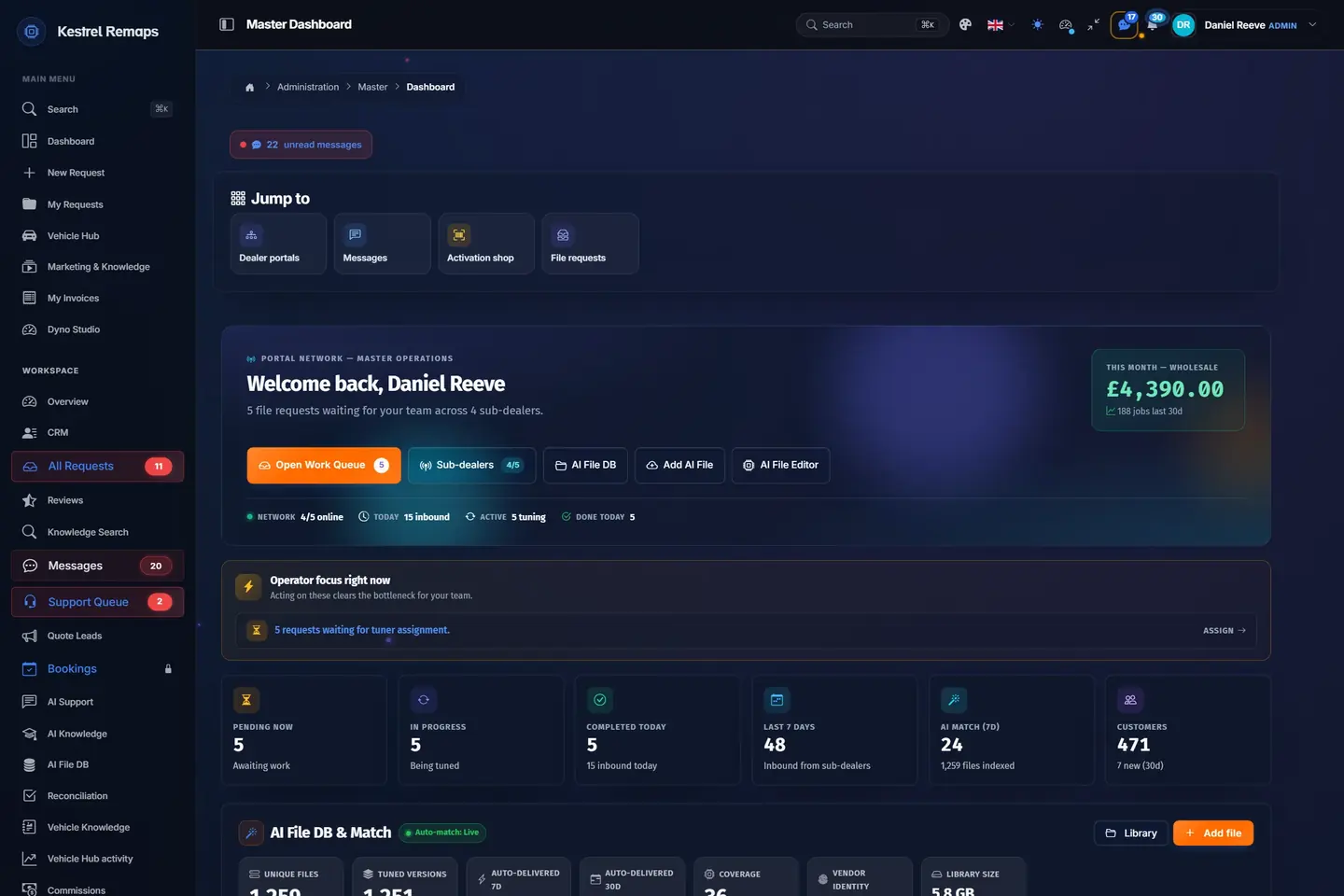
The first page of a sample shop's side, as its owner sees it in the morning. The marks show where the eye goes: the shortcuts, the month, what needs a person, and the day in numbers.
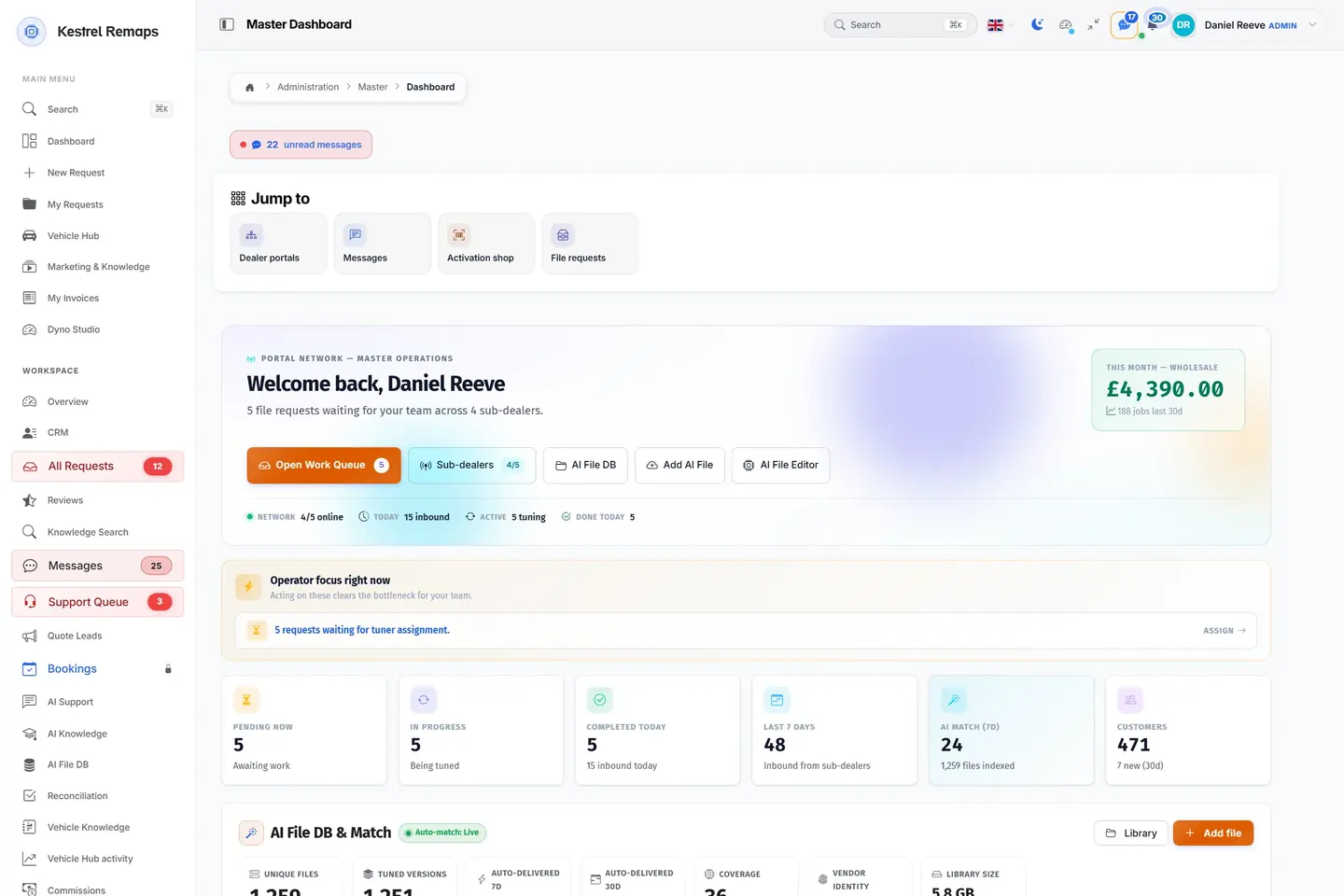
- 1Jump to the workDealer portals, messages, the activation shop and file requests, one click away.
- 2What the month has madeThis month's takings, live, before you open a single report.
- 3What needs you firstThe portal says what is waiting on a person, such as jobs with no tuner yet.
- 4The day in numbersPending, in progress, done today, the last seven days and your customers.
A sample shop; your portal carries your name.
The morning read of a master, in two minutes.
On a portal that leads dealers, the Today tab is built to be read downwards and acted on in that order.
- Waiting for youThe jobs no tuner has taken yet, from your customers and from the portals that send you files, with the oldest wait named. Counted again every half minute.
- In workThe jobs being tuned, and how many tuners have been signed in during the last quarter of an hour.
- The moneyWhat your dealers owe you, in their own currencies; the credits the sending portals hold; your own bill and its date. For administrators only.
- Needs youUp to six things, the costliest first: a dealer late to pay, a job waiting, a dealer who has not signed in since being added. Each with the button that opens it.
- The trendFiles received a day over the period you choose, against the period before, and the latest jobs under it.
The Today tab refreshes itself while you look at it; a figure can change under your eyes when a tuner signs in.
The customer's side
Your customer reads the queue on their phone, instead of ringing yours.
A garage owner signs in between two cars. The Dashboard says what he has, what is in work and where it stands, in your name and your colours.
- AAudi A4, stage oneIn progress: third in the queuetoday
- VVolkswagen Golf, gearboxOn hold: see the message on the jobtoday
- FFord Transit, stage oneRevision requestedyesterday
- BBMW 320d, stage oneCompleted: file ready to downloadMonday
- Credits, with Top Up beside themThe balance on the account is the first figure, and the button next to it opens the page where credits are bought. A banner warns when the balance is low.
- A place in the queue, not a guessLive Activity lists each job still in work with its position in the queue, or says it is on hold or that a revision was asked for.
- Every job one press awayProject Feed lists the latest jobs with the car and the state, newest first. Pressing one opens its files and its messages; View All opens every job ever sent.
- Your hours, before they writeWhen the portal keeps opening hours, the page says whether you are open now, today's hours, or when you open next.
- Only their own accountA customer sees their credits and their jobs and nothing of anyone else's. Your team does not use this page: each of them starts on their own.
What you find on it
The Overview
The Overview is the first row of your team's menu and the page the owner lands on. On a portal that leads dealers, because it is a master, has dealer seats in its package or has a dealer already, it opens as Your network with the tabs Today, Network and Your shop. On any other portal it is the Command Center, one long page. The panels are loaded after the page shows, so the page is there at once and fills in.
- The figures
- On a network portal, five tiles. Waiting for you: jobs no tuner has taken, with the oldest wait under the number. In work: jobs being tuned, with the tuners signed in during the last fifteen minutes. Dealers owe you, in their currencies; owing inside a dealer's terms is counted here and is not late. Credits they hold: what the sending portals paid up front and have not spent. Your bill, with its date. Each tile has a small mark that explains how it is counted, and pressing a tile goes to what it counts.
- Needs you
- Up to six items, the one that costs you most first. A dealer late to pay, with the amount. A job waiting, with how long. A dealer who has not signed in since being added, with the welcome email ready to send again. Each has the button that opens it. When there is nothing, the panel says so, which is the answer most mornings should give.
- The period, files a day and the latest jobs
- A period at the top of the page: seven, fifteen, thirty or ninety days. The chart of files received each day follows it and compares it with the period before, as a graph or as a table. Under it, the latest jobs with the car, the state in words and, for an administrator, the credits.
- Your master, or your file service
- Shown to an administrator on a portal that sends files out to be tuned. A dealer sees its master here: the master's name, the balance, how many files that buys, what is owed, what a file costs and what the master has switched on for it. Any other shop that buys files sees the same for its file service, with a button to add credits. A shop that starts sending files out sees the panel appear by itself.
- Network
- The second tab, for whoever runs the network. The dealers, with seats used out of those bought, how many are blocked and what is owed to you, and a menu on every row. Then the portals that connect themselves to send you files, with the credits they hold; these run their own shop. A portal with no dealers yet is told in four lines how the first one is added, with the button.
- Your shop
- The third tab, the longer view. What sells, and which vehicles and ECU families come most. On a network portal also the state of File Match and of the connectors to tool makers, the portal's health, and the tools a master reaches for during the day, such as the plate lookup and the quick file tool.
- The Command Center
- The Overview of a shop without a network. A greeting, a search across jobs, people and cars, quick actions to send everyone a message or add credits, and the users waiting for approval. Then the headline figures: files pending, revenue this month, average turnaround, active clients, the share of jobs delivered inside the promised time, new clients, each with a line saying how it is counted. Then section after section of the shop's own data: revenue against credits spent over thirty or ninety days, today against yesterday, the top makes, work and ECU families, fuel and file types, tools and methods, client growth and how many come back, revenue by service, staff performance, visitor traffic on the portal, tips drawn from your own numbers, the latest credit transactions and a live feed, the top clients by balance and spend, flagged accounts, the health of the queue, the database and the backups, the connectors, promo codes and credit packages. A Jump to list opens the page behind each.
The customer's Dashboard
Dashboard is the first row of a customer's menu and the page they land on after signing in, with their name at the top. It is written for someone who sends you files: what they have, what is in work, what is done. There is nothing to switch on; it is there on every package from the first day.
- At a glance
- Three figures read in a second: the credits on the account, with Top Up beside them; the jobs in progress; the jobs finished. Beside them, when the portal keeps opening hours, whether the shop is open now, today's hours, or when it opens next. A shop that answers around the clock says that instead.
- New Project and Manage Files
- The two buttons that start the common jobs. New Project sends the next read. Manage Files opens every job the customer has ever sent, with its files to download again.
- Live Activity
- The jobs still being worked on. Each carries its position in the queue, or a note that it is on hold, or that a revision was asked for. This is the part that replaces the phone call: the customer reads third in the queue and goes back to the car.
- Project Feed
- The latest jobs with the car and the state of each, newest first. One press on any of them opens the job, with its files, its messages and its history. View All opens the full list.
- What you choose to add
- Three things show only when you have switched them on in the settings. A card that takes a registration or a car and shows the gains a stage would bring, when the vehicle lookup is open to customers. A banner offering to connect a messaging app for notices. And the warning when the balance is low.
- When your team opens it
- The Dashboard is the customer's page, so the portal sends your people elsewhere. On a portal with dealers, the owner lands on the Overview and a tuner on the jobs waiting for them. On a shop that works alone, the owner opens this page with the shop's own panel on it, and a tuner with the technician system on sees a workstation here: the jobs assigned to them, what they earned, what was paid out and their payment details.
How it works
- Someone signs in. The portal looks at who they are: a customer goes to the Dashboard, the owner to the Overview, a tuner to the jobs waiting for them, and a tuner limited to their own jobs straight to those.
- The Overview takes its shape from the portal: Your network with three tabs where the portal leads dealers and the viewer runs the network, the Command Center everywhere else.
- Each panel is shown only to a viewer with the right to it. Money to administrators, the Network tab to whoever runs the network. A panel a viewer has no right to does not exist for them.
- The owner reads Today from the top, presses the figure or the item that matters, and is on the job, the dealer or the bill in one step.
- The period at the top changes the chart and its comparison; the panels themselves follow what the portal is and cannot be picked by hand.
- A customer reads their three figures, finds their job in Live Activity with its place in the queue, opens it with one press, and tops up or sends the next file from the same page.
Who it is for
- The ownerSees the whole shop on one screen, money included: what waits and for how long, what is owed, what the package costs and how the month compares with the last.
- A masterSees the network beside the shop: the dealers with their seats and what they owe, the portals that send files with the credits they hold, and the oldest job waiting from any of them.
- Your teamAn administrator sees the same page with the money. They add credits, approve a new user and send a message to everyone from the quick actions.
- Your tunersSees the jobs and the waits without the money. One limited to their own jobs lands on those; on a shop that works alone with the technician system on, their workstation shows their jobs, earnings and payouts.
- Your dealersOn its own portal, sees its master under Today every morning: the balance, the files that buys, what a file costs. A dealer who sends files as a customer of your portal lands on the Dashboard like any other customer.
- Your customersSees their credits, every job they sent and where each one is, and opens any of them with one press, without asking anyone.
How shops use it
The morning read of a master
A master with a dozen dealers and two tuners
Eight in the morning, coffee, Your network. Waiting for you says four jobs, the oldest for two hours. In work says three, with one tuner signed in. Needs you puts a dealer late to pay at the top, then the two-hour job, then a dealer added yesterday who has not signed in. The master opens the late dealer's account, sends the welcome email again to the new one, and goes to the oldest job.
The whole network read in two minutes, in the order it needs acting on.
A one-person shop that wants its numbers
A shop of one, with no dealers
The owner opens the Command Center on a Friday. Revenue this month against last, the average turnaround, which makes came most, how many customers came back for a second job. He scrolls to the tips and finds one about the share of petrol work rising, and to the top clients, where one with a large balance has not ordered in weeks. He writes to that one before closing.
A month understood on one page, and one quiet customer noticed before they were lost.
The Friday afternoon rush
A busy shop with twenty files in the queue
On a Friday every customer wants to know when. Now each of them opens the Dashboard and reads their place: fifth of twenty, on hold because the read was incomplete, revision requested. The one on hold opens the job and finds the message asking for a full read. The phone rings twice that afternoon instead of twenty times.
The tuner tunes, the customers know where they stand, and the two calls that come are the ones that needed a person.
A dealer who tops up before it matters
A dealer portal under a master, run by its owner
The dealer signs in and Today shows, beside its own jobs, the panel for its master: the balance, how many files that buys, what is owed and what the master has switched on. The balance is low. The dealer adds credits from the panel before the day's files go out, instead of finding out when a job is refused with a car on the ramp.
The dealer sees its standing with the master every morning, and the master is not rung about a refused job.
One page, cut by role
A shop with an owner, an office administrator and two tuners
The owner and the administrator open the same page and see the money: the bill, what dealers owe, the revenue. A tuner opens it and sees the figures, the waits and the jobs, with nothing about money anywhere. The second tuner, limited to his own jobs, does not see the page at all and lands on his jobs. Nobody had to be told what not to look at.
One first page for the whole team, with no money shown to anyone it is not for.
Where it helps, and its limits
Where it helps most
- Every owner who wants one page to say whether anything is on fire.
- A master who must see which dealer owes, which job has waited longest and which tuner is in.
- Any shop that answers "is it ready" more than once a day: the customer reads their place in the queue instead.
- A shop with a team, where the owner sees the money and the tuners see the work.
- A dealer who needs its balance with the master in front of it before the day starts.
- A shop that keeps opening hours and wants customers to read them before they write.
What it does not do
- The panels cannot be picked or moved by hand. The portal chooses the shape of the Overview from what it is, and the panels from who is looking; only the period is yours to change.
- A dealer owing inside its terms is counted as owed, not as late. Late is decided by the terms you set for that dealer.
- The figures are fresh, not to the second: the waiting count every half minute, visitor traffic on the Command Center every two minutes.
- The Dashboard shows a customer their own account only, and the opening hours, the vehicle lookup and the low balance warning appear on it only when the shop has switched them on.
Which package
- The Overview
- In every plan, Start included.
- The customer's Dashboard
- In every plan, Start included.
Prices in euros, a month, before tax, billed on the 1st. Every price ›
Questions shops ask
- Why does my Overview look different from my colleague's?
- Each viewer gets the panels that are theirs. Money shows to administrators only, and the Network tab to whoever runs the network. A tuner sees the jobs and the waits without the money.
- Why is my first page a long Command Center and not the three tabs?
- Because your portal does not lead a network. A shop without dealers gets the whole Overview on one page: the figures, the charts, the breakdowns and the health of the portal. The tabs come when the portal is a master, has dealer seats in its package or has its first dealer.
- Can I choose what is on the Overview?
- The period, yes: seven, fifteen, thirty or ninety days. The panels follow what the portal is. A shop that starts to buy files from a file service sees that panel appear by itself, and a dealer sees its master's.
- What does Waiting for you count?
- Jobs no tuner has taken yet, from your customers and from the portals that send you files. It is counted again every half minute, and the oldest wait is named under the number.
- A dealer owes me. Why is it not under Needs you?
- Owing inside the dealer's terms is not late. It counts in Dealers owe you, and moves to Needs you once it is past the terms you set for that dealer.
- Does a customer see other people's jobs?
- No. The Dashboard shows only the credits and the jobs of the account that signed in.
- Can a customer see where a job is without writing to us?
- Yes. Live Activity gives each job in progress its place in the queue, or says it is on hold or waiting on a revision. Opening the job shows its files and its messages.
- Where does a tuner land after signing in?
- On a portal with dealers, on the jobs waiting for them. A tuner limited to their own jobs lands on those and does not see the Overview. On a shop that works alone with the technician system on, they see a workstation with their assigned jobs, earnings and payouts.
- Can a customer buy credits from the Dashboard?
- Yes. Top Up sits beside the credits and opens the page where credits are bought.
- Is there anything to set up, and is it in my package?
- Nothing to set up, and both pages come with every package. The opening hours, the vehicle lookup for customers and the notices are switched on in the settings if you want them on the Dashboard.
Every function of the portal, each on its own page. All functions
Name your portal. It is ready in under a minute.
Pro: today you pay this month in full, or only the days left if the 1st is less than 10 days away; then €60 on every 1st.
- Your name and logo
- Files from any tool
- Updates done for you
- Moving in free on paid plans
You can change your portal's address from your account at any time, or add another to the same portal, free. More are coming: tunerengine.co.uk, tunerengine.uk and tunerengine.info, then new short ones made for portals.