A function of your portal, in full
The next job is always at the top, for a reason you can read.
The request queue is the working board of your portal, and the job page is where each file is done: the read, the tuned file, the conversation and the notes for your team. Together they replace the group chat that used to decide which car comes first, and they keep every job findable for as long as the car keeps coming back.
A tuning shop's day is a list of files and an argument about which comes first. The request queue settles the argument with a rule everyone can read. A job where the customer spoke last and nobody has answered comes first. Then a file whose opening or packing failed. Then the tier the customer paid for, urgent ahead of express ahead of normal. Within each of those, whatever moved last: a new job, a new message, a file just finished. Oldest first, newest first and by price are there for the days you want them, but the order the queue opens with is the one that stops a paying customer waiting behind one who did not pay.
Three screens make up this function, and they are closer than the menu suggests. Request Queue and All Requests are the same screen opened two ways: the first for doing, with the header figures and Next job; the second for finding, with the search, the status filters and the Request History of everything finished. The job is the page behind every row. The read is downloaded there, the job is accepted, held or turned down, the tuned file goes out, the customer is answered, and a job the shop cannot do in house is sent on to its master or to the file service.
Two groups of settings decide how the three behave. How a job moves sets whether customers pay before the work or to unlock the finished file, whether they may cancel, the time your team has for an express and an urgent job, the wait a customer is shown, and whether a reply on a finished job brings it back into the queue. Who gets which job decides whether the portal hands new jobs to your technicians by a rule, the moment they arrive, and whether a technician may take a job nobody has yet.
The queue, the list and the job page are in every package, from a shop of one to a master with a team. Handing jobs out by rule and letting technicians pick their own come with Pro and above, because they only mean something once there is more than one person to share the work.
A shop's day without it
Four tuners, twenty open jobs, and the order they are done in is whoever shouts loudest in the group chat. The customer who paid for urgent waits behind one who did not. A file that failed to open on Tuesday has sunk under everything that arrived since, and the team hears about it from the customer on Thursday. The read is in an email, the tuned file in a chat, the price was agreed on the phone. Six months later the car comes back with a fault light and nobody can say which file was the last one sent, so the job is done again from scratch, for free, to be safe.
The queue, as your tuners see it.
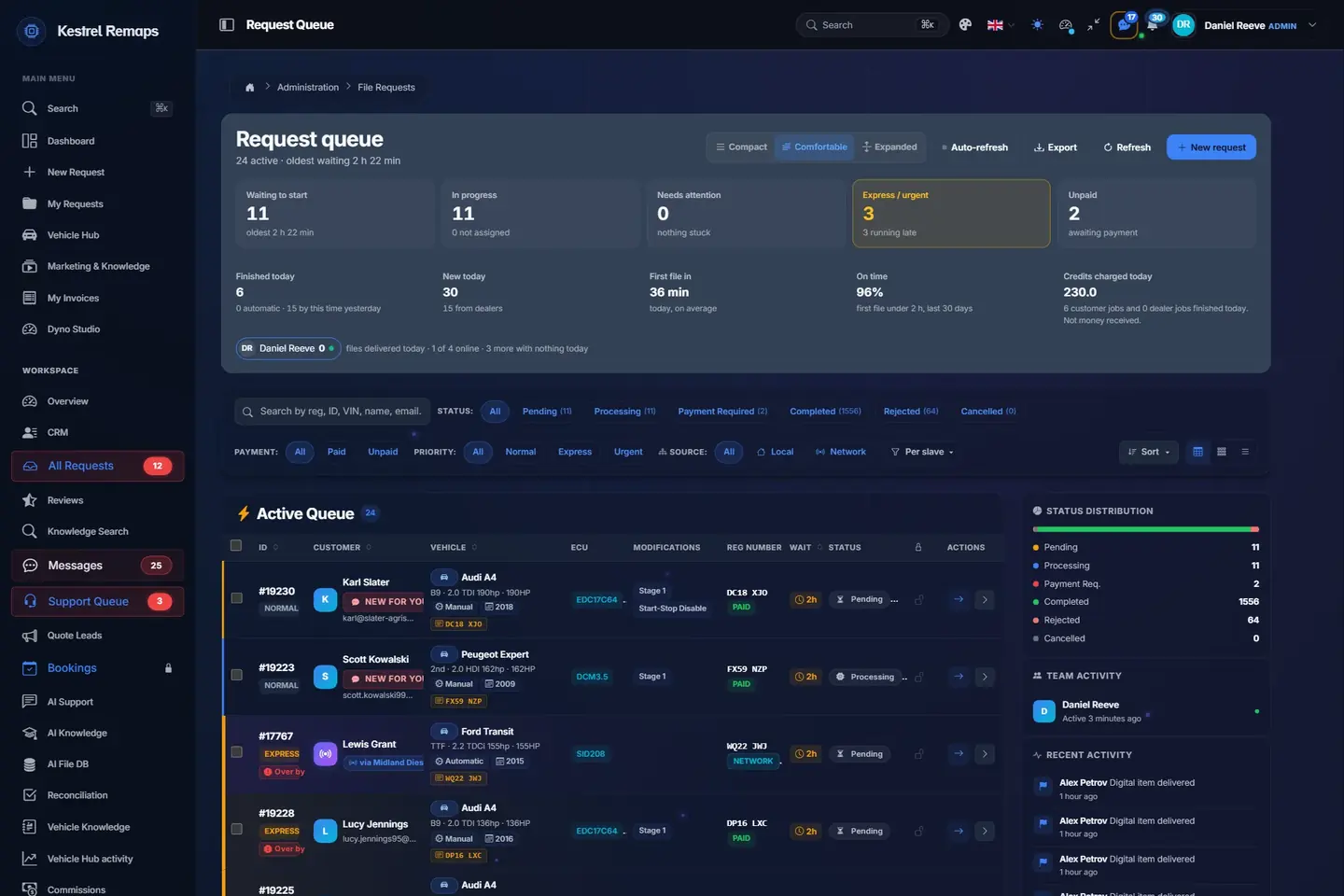
The Request Queue on a sample portal, with what each part of the screen is for.
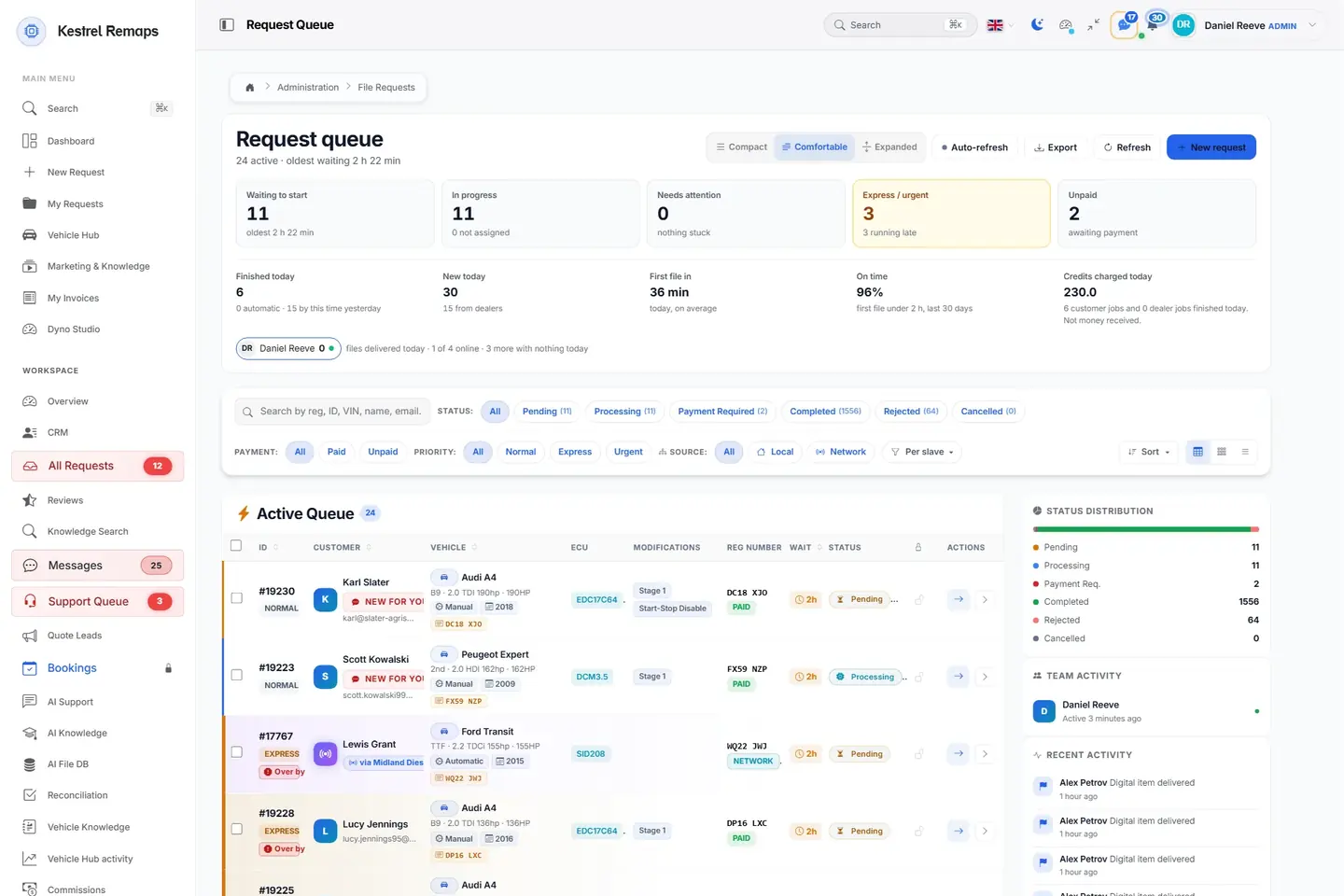
- 1Express and Urgent firstJobs paid for speed sit at the top with their turnaround target.
- 2Find any jobBy number plate, job number, VIN, name or email; filtered by status, payment and priority.
- 3The car, the ECU and the workEvery row carries what the portal read from the file and what was ordered.
- 4Where every job standsPending, processing, waiting for payment, done: counted as they move.
A sample shop; your portal carries your name.
Why this job is at the top.
The order the queue opens with is a rule anyone on the team can read, from the first line down.
- A customer nobody answeredA job where the customer spoke last comes first. Opening the job does not clear it; a reply does, or ticking the conversation off.
- A file that failedNext, a job whose file failed to open or to pack, so it cannot sink under what arrived since.
- What the customer paid forThen the tier: urgent ahead of express, express ahead of normal, each with a clock against the time you set.
- Whatever moved lastWithin each of those, the newest movement: a new job, a new message, a file just finished.
- Next jobOne button opens the top job nobody else has taken, so two tuners pressing it are handed two different jobs.
Newest, oldest, by priority, by waiting time and by price are there for the days the opening order is not the one you need.
A job, from arrival to Request History.
What happens to one car between the customer pressing Send and the job leaving the queue, with the settings that shape each step.
- It arrivesPending, or payment required where customers pay first and have not. With assignment on arrival it already carries a technician's name, chosen by your rule.
- Somebody takes itAccept and Start, at the quoted price or a custom one. Hold tells the customer the job waits on their answer; Reject asks for a reason and can return the credits.
- It is workedProcessing. The read is downloaded, the job can be locked so a second person does not work the same file, and questions go in the job's conversation.
- Or it is sent onA job the shop cannot do in house goes to its master or to the file service, and is followed on the same page until it is back.
- It is deliveredComplete and Deliver closes the job and tells the customer at once. It leaves the queue and joins the Request History.
- It can come backA job whose customer asks for a change stays in the queue until the change is answered, and a reply on a finished job can bring it back, if you allow that.
What you find on it
Request Queue
The first page under requests in the portal's menu, and the one a tuner keeps open all day. It shows the jobs in work and the jobs waiting for someone to take them, in the order they should be done, with the figures of the whole shop above the list. A finished job leaves it; a job whose customer has asked for a change stays until the change is answered, whatever its status says.
- The header figures
- Waiting to be picked up, active, needing attention, and how long the oldest job has waited. Then one figure each for yours in progress, waiting to start, in progress with how many of those are not assigned, needs attention split into files that failed to open and files that failed to pack, express and urgent, unpaid, and on a dealer portal the jobs that are with your master. Every figure is a filter: press it and the list shows exactly those jobs.
- Next job
- One button that opens the top job of the list in front of you that nobody else has taken. It follows the queue's own order and not a second one, so two tuners pressing it are handed two different jobs.
- The active queue
- Every pending, processing or payment-required job, plus any job with an open change request. A row shows the customer, the vehicle, the ECU, the modifications asked for, the plate, how long it has waited, its status and, on a master, the dealer it came from. Express and urgent jobs carry a clock against the time you set for them: on track, at risk, missed. A dot marks what is new for you personally, not for the whole shop.
- Sort and views
- Newest, oldest, by priority, by waiting time and by price up or down, for the days the opening order is not the one you need. Table, card and compact views show the same list on a wide screen, a phone or a long day.
- The side panel
- How the jobs are spread across statuses, who on the team was online in the last quarter of an hour, the last few things that happened on the portal, the average turnaround of the last thirty days, and the keyboard shortcuts that move through the rows, open a job and clear a selection.
- Auto-refresh, export and New request
- With Auto-refresh on, the list updates by itself and a new job, a new message or a finished file moves up without a reload. Selected rows export in one press. New request opens the form for a job the shop enters by hand, for the customer who rang instead of uploading.
All Requests
The next row of the menu, and the same screen opened for finding. The queue answers what to do next; All Requests answers where that job is. The active work is listed first, in the queue's order, and the Request History follows with every completed, rejected or cancelled job. A customer never sees this list: they see their own jobs on their side of the portal.
- Find any job
- One box that reads what a customer would say on the phone: a registration, typed with or without its space; a VIN; the job number; the customer's name or email; the make and model of the car, from the catalogue or typed by hand. A technician the portal limits to their own jobs finds nothing by name or email, on purpose.
- Filter the queue
- Status pills with a count on each: all, pending, processing, payment required, completed, rejected, cancelled. Under Filters: the vehicle group, so machinery is pulled out of a list full of cars; paid or unpaid; normal, express or urgent; and on a master the source, which is its own customers, the network, or one named dealer.
- Open a job
- View on a row opens the job. Details on a row shows the hardware and software numbers, transmission, year, mileage, reading tool and method without leaving the list. Assign hands the job to a tuner by name from the row, and it shows on their side at once.
- Request History
- Every finished, rejected or cancelled job, most recently finished first, with the date it was done, the turnaround to the first delivery and its payment. This is where the car from March is, with everything that was said and sent on it.
- Views and export
- The same table, card and compact views as the queue. Select the rows you want and export them; the filters you set decide what is in the selection, which is how a dealer's month becomes one list.
The job
The page behind every row, opened from the queue, from All Requests or from a message. A job is one car, one read and everything that follows: the price, the acceptance, the tuned file, the questions, the change requests, the payment. All of it stays on this page, so the second visit of a car starts from the first.
- The top of the job
- The vehicle, the ECU, the modifications asked for, the customer, the price and the status. It opens as four short cards side by side or as one long column with every field, hardware and software numbers, VIN and log file included, editable in place. Each person switches between the two on the page, and the portal decides which one a new browser opens with.
- The read
- What the customer sent. Download Original gives you the file to open in your tuning tool. Where a tool maker's connection has opened a packed file, the plain copy is offered beside it, and that is the one to tune. The original is never replaced: every tuned file is added next to it.
- Accept, hold, reject and price
- Accept and Start, or accept at a custom price after changing it. Hold tells the customer the job waits on their answer. Reject asks for a reason and can return the credits. Edit Price adjusts the amount or marks the job paid, and credits can be refunded in part or in full. Each of these leaves its own line on the job.
- Send the tuned file
- The delivery box. Drop the finished file and press Complete and Deliver: the job closes and the customer is told at once. When the customer has asked for a change, the same box reads Submit Revised File. Every version delivered stays listed under the job with who uploaded it and when.
- Talk on the job
- The conversation with the customer, the same on both sides of the portal. A message from the customer that nobody has answered is what puts the job at the top of the queue. Opening the job does not clear that; a reply does, or ticking the conversation off.
- Notes for your team
- The shop's own notes, which the customer never sees: what was done, what to watch next time, why the price was what it was. They stay with the job and never mix with the conversation.
- Assign and lock
- Assign Tuner hands the job to someone by name. Lock request keeps a second person from working the same file while the first has it.
- Send it on, and pay as you send
- Sends the job to your master or to the file service and follows it: on its way, waiting to be accepted, accepted, being worked, back with you, or turned down with their reason. Short of credits, a sheet offers to pay for this one file or to buy a pack, by card on a secure page, and the file goes by itself once the payment is in. Work is locked here while they have it, and you can take the job back until they accept it. Only the owner or an administrator can pay.
How a job moves
Settings → Requests and files → How a job moves. This section decides the order of things on every job: whether the customer pays before the work or to unlock the finished file, whether they may cancel, how long your team has for an express and an urgent job, what wait a customer is shown, whether a reply reopens a finished job, and how the job page first appears to your team.
Who gets which job
Settings → Tuners and staff → Who gets which job. This section decides how a new job finds its tuner: by your hand, by a rule the portal applies, at the moment the job arrives, or by a technician taking it. It comes with Pro and above. In a shop of one there is nothing to decide, and every job is yours.
How it works
- A customer sends a job, or the shop enters one with New request. With payment before the work, the credits are taken as the job is sent; with payment after delivery, the job comes in marked unpaid.
- The job appears in the Request Queue. If the portal hands jobs out on arrival, it already carries a tuner's name; if not, it waits under waiting to start for the owner to assign it or for a technician to take it.
- A tuner presses Next job, or takes the row at the top. It is there because a customer is waiting for an answer, a file failed, or it is the job of its tier that moved last.
- On the job, the tuner reviews what was asked: accept and start, accept at a different price, put it on hold with a question for the customer, or reject it with a reason. Lock it if a colleague might open the same file.
- The read is downloaded and tuned. The finished file goes into the delivery box and Complete and Deliver sends it. The customer is told at once, and their download opens once the job is paid.
- The job leaves the queue for the Request History. The next job moves up by itself.
- If the customer asks for a change, the job returns to the active work, flagged as waiting for a reply, and the revised file goes out from the same box. If they only write, the job returns when the re-entry window is set; otherwise the message waits in Messages.
- Months later, the job is found in All Requests by the plate, the VIN or the name, with the read, every file delivered and everything that was said.
Who it is for
- The ownerReads in the header how much is waiting, how much is in work, what is stuck and who has it. Assigns what nobody has taken, sets or changes a price, refunds, and finds any job of any date before answering its customer.
- Your tunersTakes the next job from the top instead of picking the easy one, sees their own jobs in one figure, and does the whole job on one page: download, tune, deliver, answer, leave a note.
- Your teamSees the whole list, or only the jobs assigned to them when the portal limits technicians to their own. In that case the customer behind a job is a number, and the shop's money is not theirs to spend.
- Your customersNever sees the queue. On their side they see their own jobs, the same conversation and the delivered file, their place in the queue with an estimated wait, and a Cancel button while nothing has been delivered, if the shop allows it.
- A masterSees dealers' jobs in the same queue as its own customers', each marked with the dealer's name, filters to one dealer when that dealer asks, and works the job on the same page. The dealer's customer never sees the master's name.
- Your dealersSends a job on to its master from the job page and follows it there. The jobs being worked upstream are counted apart in its own queue, as with your master.
Every setting, explained
How a job moves
7 settingsSettings → Requests and files → How a job moves. This section decides the order of things on every job: whether the customer pays before the work or to unlock the finished file, whether they may cancel, how long your team has for an express and an urgent job, what wait a customer is shown, whether a reply reopens a finished job, and how the job page first appears to your team.
Staff request page layout
What the details of a job open with for anyone on your team who has not picked a layout of their own. Each person can switch on the page itself, and their choice is kept in their browser and wins over this one. Nothing is hidden for good in either layout, and the customer's page is not touched.
- Four cards The car, the file, the customer and the order in four short cards side by side: a summary for a team that mostly checks and delivers.
- One column Everything in one long column, every field shown and editable in place: hardware and software numbers, VIN, calibration and log file included.
Customers may cancel
Shows the customer a Cancel button on a request of their own while it is still open and no tuned file has been delivered. Credits the request had taken go back to their balance as a refund line in their history. Once a tuned file is on the request, or the request is finished, a cancel is refused with a message saying so. Off, the button is hidden and a customer is told to write to support. Your team can reject or close a request either way.
When customers pay
Decides the order of money and work for the whole portal. It sets whether a job is accepted only when the customer has the credits for it, or comes in unpaid and is paid for when the file is ready. It applies to every new job from the moment you save; jobs already in keep the way they came in.
- Before the work The credits are taken when the job is sent. A customer whose balance is below the price is shown the price and their balance, and asked to add credits and send again.
- After delivery, to unlock the file The job comes in without taking credits and is marked unpaid. Your tuners work, and the customer pays to unlock the finished file. The file stays locked until then.
Express turnaround
The minutes your team has to deliver an Express job, counted from the moment it came in. Every Express job on the board runs a clock against it: on track, at risk once most of the time has gone with nothing delivered, missed when it has all gone. A finished job is judged by when it was delivered, so an old job never turns into a miss the next day. On a master, a job a dealer sent in runs on the time promised to that dealer, where one is set.
Urgent turnaround
The same clock as Express turnaround, for the Urgent tier, which has its own price and its own time. Every Urgent job runs against it from the minute it comes in to the minute it is delivered, and shows on the board as on track, at risk or missed. A missed time changes nothing by itself: no refund is made and no price moves. The board shows the miss so that somebody looks.
Reopen finished jobs on reply
How many days after a job finished a message from its customer puts it back into the working queue, like a fresh arrival. Only a real message from the customer counts: a staff note or an attached file reopens nothing. Older jobs stay where they are, flagged and one press away under the filter. At zero, re-entry is off and unanswered conversations wait in Messages instead. A change request on a delivered file keeps the job in the queue either way.
Minutes per job in queue
A customer with a job in the queue sees their place in it and an estimated wait. The wait is the number of jobs ahead of theirs times this number of minutes, counted the way your queue is ordered. When they are next, they are shown one job's worth, never zero. It changes only what the customer reads, nothing about how fast your team works.
Who gets which job
4 settingsSettings → Tuners and staff → Who gets which job. This section decides how a new job finds its tuner: by your hand, by a rule the portal applies, at the moment the job arrives, or by a technician taking it. It comes with Pro and above. In a shop of one there is nothing to decide, and every job is yours.
Automatic job assignment
Lets the portal give new jobs to your technicians by the rule you choose in How jobs are shared out, instead of you naming a person on each one. It keeps a pool of the people who may take work: active technicians and administrators who accept assignments. A person who opted out on their account is never picked. When it is on and nobody is eligible, the settings page warns you, so you know why jobs stay unassigned. Assigning by hand works as before. It comes with Pro and above.
How jobs are shared out
The rule that picks the technician when Automatic job assignment hands a job out. It picks from the pool of people who accept assignments, and when the rule finds nobody the job stays unassigned, for you. It comes with Pro and above.
- You assign every job Nothing is handed out by itself; each job waits for a name from you.
- In turn Each new job goes to the next person in the pool, round and round, so everyone gets the same number.
- By skill The job's services, ECU and kind of vehicle are matched against each technician's skills on the Tuner Specializations page. The best match wins, the least loaded on a tie, and nobody when no skill matches. A technician with no skills listed is never picked.
- Whoever is at work now Goes to a technician whose working day is on at this moment, the one with the most of it left. Nobody at work, no assignment.
- Skill and availability Tries By skill, then Whoever is at work now, then In turn, and stops at the first that finds a person.
Assign new jobs on arrival
Decides when the rule runs: on, every new request is handed out the instant the customer sends it, so the technician is told at the same moment as you. A request still waiting for its payment is skipped at that moment, so no unpaid job lands on a technician; when it is paid later, assign it from the job page or let a technician take it. It does nothing without Automatic job assignment, which is the engine behind it. It comes with Pro and above.
Technicians pick their own jobs
Shows technicians the jobs nobody has yet and lets one of them take a job by accepting it. Two who accept the same job at the same moment cannot both get it: the first wins and the other is told. A file delivered in the chat of an open job claims it the same way. Technicians are told of a new open job, so the queue does not depend on anyone looking. Money and control stay with you: a technician who took a job still cannot price it, refund it or hand it on. It comes with Pro and above.
How shops use it
Four tuners, one order
A busy shop with staff
Each tuner keeps the queue open and presses Next job when they finish one. The job they get is the top one nobody else holds: a customer waiting for an answer, a failed file, or the urgent job that moved last. The owner watches the header. In progress says two are not assigned, so the owner assigns them from their rows. Needs attention says one file failed to pack, and the owner opens it before the customer notices.
Nobody picks the easy one, nobody waits behind a job that paid less, and the stuck file is found by the queue and not by the customer.
The car from March
A shop of one, with a customer on the phone
The customer gives the plate. The tuner types it into All Requests, with the space, and the job from March is the only row. Details shows the hardware and software numbers; View opens the job with the original read, the tuned file that went out and the three messages exchanged at the time. The customer wants a change, and the tuner says yes with the file already open.
A thirty-second answer instead of a call back, and the new work starts from the file that was actually delivered.
A job that waits on the customer
A shop with a read that does not match the car described
The tuner presses Hold and asks in Talk on the job which car the read came from. The job sits on hold, marked as waiting for the customer, and comes back up when they answer. The answer is that they uploaded the wrong file, so the job is rejected with that reason and the credits are refunded.
No file is tuned for the wrong car, and the reason is on the job for both sides to read.
Sent on, paid on the spot
A dealer whose master has the tool it does not
The dealer presses Send this job to its master. The account is short of credits, so the sheet opens: pay for this file only, or buy a pack. The owner pays by card on the secure page, comes back to the job, and the file is on its way by itself. The job is locked on the dealer's side while the master works it, and the master's file lands on the same page when done.
No transfer to arrange and no file to forward by hand, and the dealer's customer sees only the dealer.
An outside tuner who sees only their own
A shop that takes on a freelance tuner
The portal limits technicians to the jobs assigned to them. The freelancer opens All Requests and sees their three jobs and nothing else; the customers are numbers, and typing a name into the search finds nothing. The owner assigns a fourth job from the full list, and it appears on the freelancer's side.
Work is shared without sharing the customer list.
Where it helps, and its limits
Where it helps most
- A shop with staff, where the order of work used to be decided in a group chat.
- A shop that sells express and urgent and wants the surcharge to actually move the job.
- Any shop whose customers come back and ask about a car, not a job number.
- A master whose dealers' jobs arrive in the same stream as its own customers', and who settles a dealer's month from the history.
- A shop that has lost a job under newer ones and found out from the customer.
- A shop of one that wants to open one page in the morning and know the day.
What it does not do
- The queue orders the work; it does not do it. A missed express or urgent time is shown on the board and nothing more: no refund is made by itself.
- The search reads what is on the job. A car entered by hand with a mistyped plate is found by its VIN, the name or the job number, not by the plate as the customer says it.
- When customers pay is one choice for the whole portal. You cannot take payment first from private customers and after delivery from dealers.
- Sending a job on locks it on your side until it comes back. You can take it back until the other side accepts it, not after, and only the owner or an administrator can pay for a file or a pack.
Which package
- Request Queue
- In every plan, Start included.
- All Requests
- In every plan, Start included.
- The job
- In every plan, Start included.
- How a job moves
- In every plan, Start included.
- Who gets which job
- From Pro, €60 a month.
Prices in euros, a month, before tax, billed on the 1st. Every price ›
Questions shops ask
- Why is this job above that one?
- A customer waiting for a reply outranks a stalled file. A stalled file outranks ordinary work. A paid priority stays ahead within its group, urgent before express before normal. After that, whatever moved last comes first. Change the sort if today needs a different order.
- How is All Requests different from the Request Queue?
- The queue is what needs doing now, in the order to do it. All Requests is the same screen opened for finding: the search, the filters and the history of everything finished.
- Can a tuner take a job by themselves?
- When Technicians pick their own jobs is on, a tuner accepts an unassigned job on opening it, and it becomes theirs. Otherwise the owner assigns it from the row or from the job page. A job that already has someone on it cannot be taken; moving it stays with you.
- Does the customer get the file the moment I deliver?
- They are told at once. The download opens once the job is paid, which with payment before the work is already the case. The shop's side is never held back.
- Can the customer read my team notes?
- No. Notes for your team are for the shop only. Talk on the job is what the customer sees and answers.
- Is the original read kept?
- Yes. The read the customer sent stays on the job beside every tuned file that followed, and each delivered version is listed with who uploaded it and when.
- Can my tuners see every job and every customer?
- As the portal comes, yes. A setting limits technicians to the jobs assigned to them; then the rest of the list does not exist for them, the customer behind a job is a number, and a search by name or email finds nothing.
- Can I change the price after the customer sent the job?
- Yes. Edit Price sets the amount or marks the job paid, and accepting at a custom price does both before work starts. The customer sees the price on their side.
- What happens if I run out of credits while sending a file on?
- You pay for that one file or for a pack right there, by card on a secure page, and the file goes on by itself after the payment. Only the owner or an administrator can pay; a tuner is told that they have been asked.
- Does a thank-you on a finished job put it back in the queue?
- Only if you set a re-entry window in days. It comes at zero, so a message on a closed job waits in Messages. With a window set, any message from the customer inside it brings the job back, a thank-you included.
Every function of the portal, each on its own page. All functions
Name your portal. It is ready in under a minute.
Pro: today you pay this month in full, or only the days left if the 1st is less than 10 days away; then €60 on every 1st.
- Your name and logo
- Files from any tool
- Updates done for you
- Moving in free on paid plans
You can change your portal's address from your account at any time, or add another to the same portal, free. More are coming: tunerengine.co.uk, tunerengine.uk and tunerengine.info, then new short ones made for portals.